

Before buying a smart laptop charger, check these MacBook settings
A charger with a screen is tempting. If battery care is the reason you want one, first find out what your laptop already does and what your current charging setup is missing.
Anker’s US launch page for the Laptop Charger Pro schedules its official launch for October 22 at midnight PDT. The page promotes a customizable display and a MacBook charging threshold through Anker Charging Manager. It gives us a timely reason to ask a practical question: would another charging control actually improve your daily setup?
For some Mac owners, a charge limit is already available in macOS. The sensible starting point is a settings check before a shopping list. This is a buying checklist based on manufacturer documentation; we have not tested the new charger.
Find the control you already have
Apple’s battery charging guide describes two different controls. Optimized Battery Charging, available from macOS Big Sur 11, learns your routine and may delay charging beyond 80%. Charge Limit lets you choose a ceiling between 80% and 100%, but requires Apple silicon and macOS Tahoe 26.4 or later.
On a supported Mac, open System Settings, choose Battery, then the information button beside Charging. Check the options actually shown on your machine. Apple notes that a Mac using either feature may occasionally reach 100% to keep its charge estimates accurate.
If you find a charge limit that meets your needs, try that before paying for an accessory specifically to obtain the same control. If your model or software lacks it, check the charger’s compatibility documentation rather than assuming any MacBook is supported. Anker’s launch page says software updates will expand device support over time, so support should be checked for your exact model.
Read the charging message before replacing hardware
A laptop that stops at a chosen charge level may be behaving exactly as intended. Apple’s charging support page, updated October 7, distinguishes a charging hold or limit from a slow charging connection.
In macOS Tahoe 26.4 or later, a slow-charger warning can flag a setup supplying too little power. Apple recommends a power adapter and cable that meet the minimum wattage for your Mac model. A display supplying power over USB-C or Thunderbolt can also be a charging source. Connecting several power sources does not make a Mac charge faster; it uses one port at a time.
Write down the message you see and the cable you are using. If you normally connect through a monitor, include that in your note. This gives you a specific question to investigate, such as whether the monitor’s power delivery meets your laptop’s requirement. Buying a charger because the battery percentage seems stuck skips that diagnosis.
Decide whether the display solves a problem
Before comparing accessories, finish this sentence: “I want to see or control…” If the answer is a charge ceiling, you now know where to look first. If it is charging information you can read without opening the laptop, a physical display may appeal for a different reason. Check exactly which readings the product offers and how you would use them.
A useful comparison note has room for your laptop model, the charging setup you use today and the one feature you want to add. Keep decorative features separate. A customizable picture on a charger can be enjoyable, but it is a personal preference; it does not establish a battery-care benefit.
Also ask whether the feature needs companion software, which operating systems it supports and whether it works with your usual cable or dock. Look for those answers in the product’s current manual. If a seller cannot answer a compatibility question, leave the purchase undecided.
Make the decision around an ordinary workday
Think about tomorrow’s schedule. Will the laptop stay at your desk, or will you need to use it away from an outlet? Choose a charging routine around that day, then check how to request a full charge when you need one. Apple provides a “Charge to Full Now” option when charging is held or a limit has been reached.
For a desk-bound setup with suitable power and a working built-in limit, there may be no immediate problem to solve. If you need a replacement charger anyway, compatibility and sufficient power belong ahead of display customization. Save the model-specific requirements beside your shortlist so you can compare the actual product specifications before ordering.
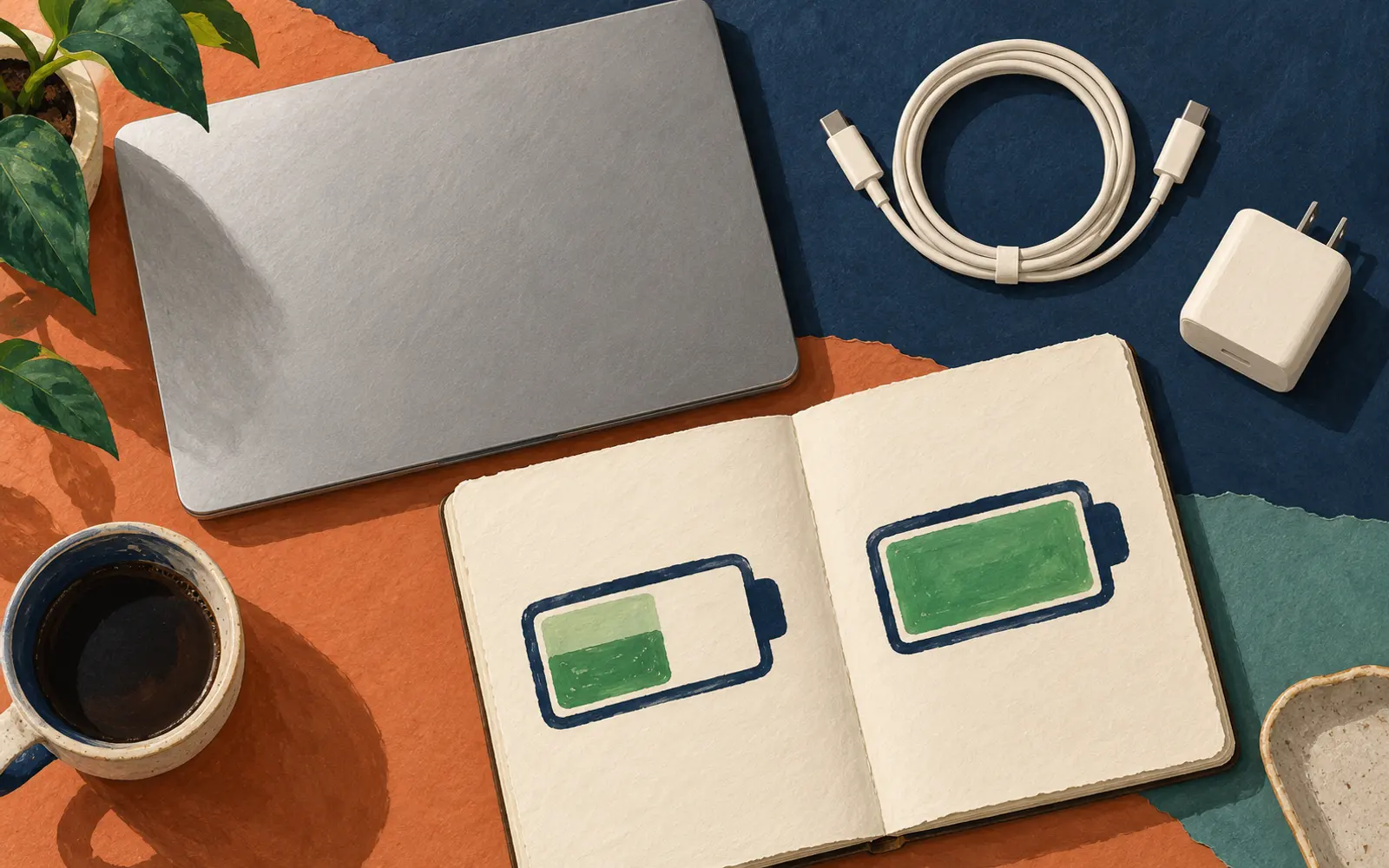
Sources checked October 22, 2026: Anker’s US launch page and the two linked Apple support guides. Written and edited with AI assistance. Recommendations are editorial advice, not hands-on test results. Both images are AI-generated illustrations.
SOURCES
Sources and further reading
EZ Trends links to primary documents, official announcements and established public-interest organizations. Consult the linked sources for current information.
- US launch page for the Laptop Charger Proanker.com
- battery charging guidesupport.apple.com
- charging support page, updated October 7support.apple.com